
MAC ADDRESS
A MAC (Media Access Control) address is a number that identifies the network adapter(s) installed on your computer. The address is composed of up to 6 pairs of characters, separated by colons. You may need to provide your MAC address to a router in order to successfully connect to a network. To find your MAC address on any system with a network connection, use one of the following methods.Windows XP, Vista, 7 or 8.
1. Click Start button. Type "cmd" in the Search box and the "cmd" icon will appear in the Start Menu panel.
2. Click the "cmd".

4. Without changing anything, type "ipconfig /all" and press Enter key.
5. The picture shown below should be appearing.
6. The MAC Address also known as Physical Address in Windows system.
7. For cable connection, the default name is "Ethernet adapter Local Area Connection".
8. For wireless connection, the default name is "Ethernet adapter Wireless Network Connection".

Mac OS X
USING SYSTEM PREFERENCES:
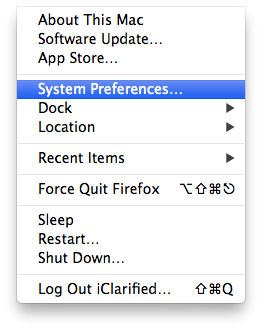
1. Select System Preferences from the Apple menu at the top left of your screen.
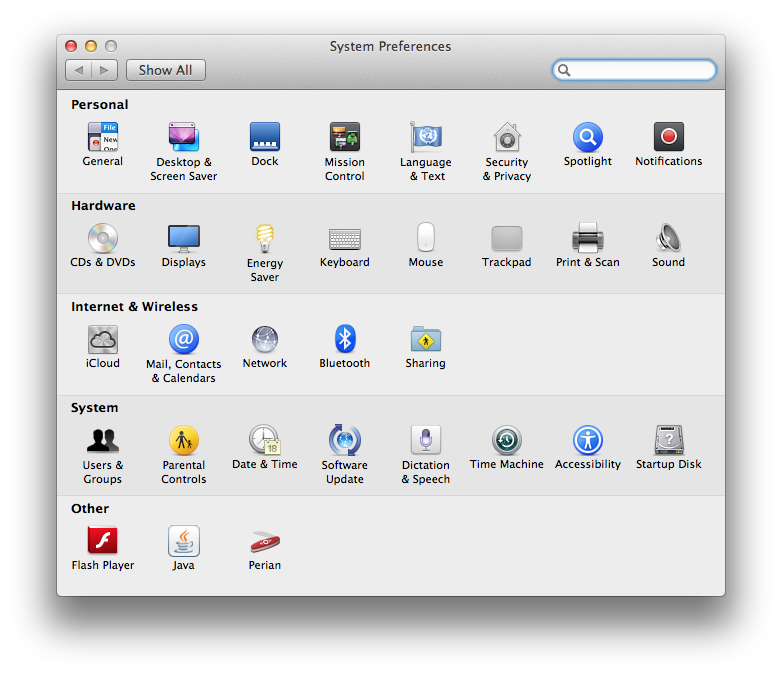
2. Click Network from the System Preferences menu.
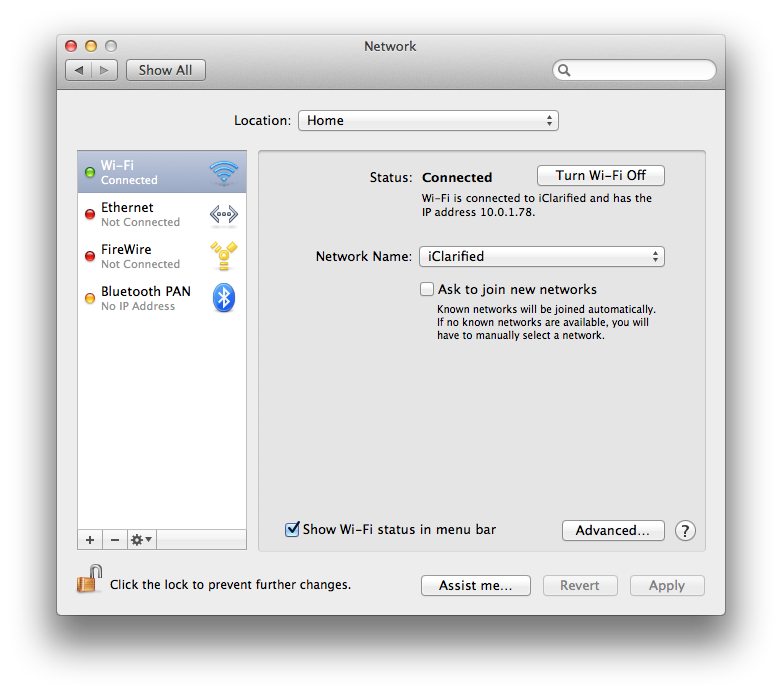
3. Choose Wi-Fi from the list of interfaces on the left and click the Advanced button.
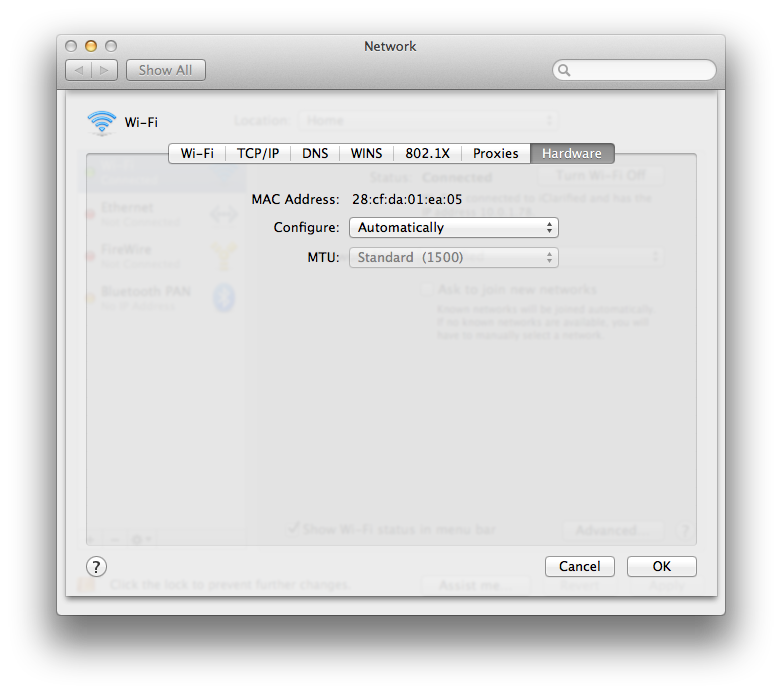
4. Choose the Hardware tab under which you will see the MAC address of your wireless card.
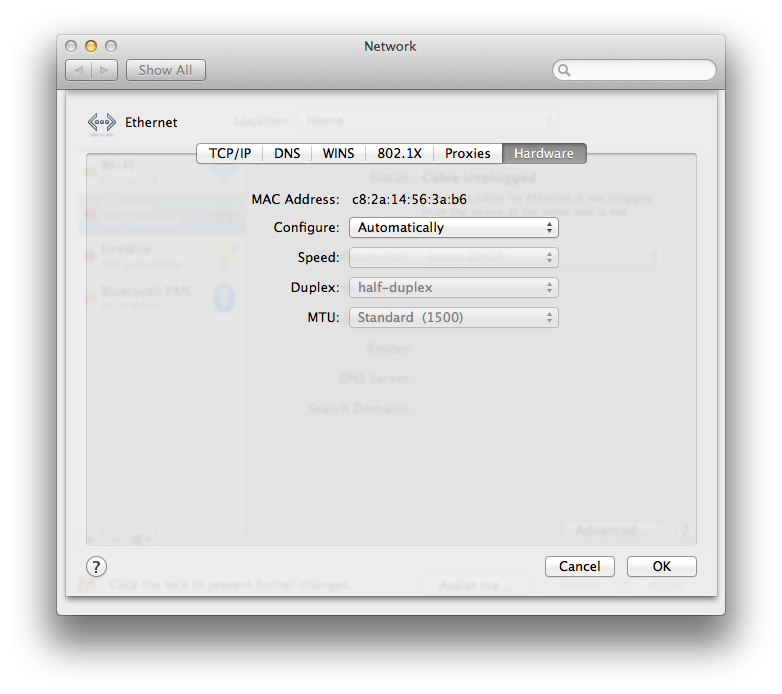
5. Press Cancel to return to the Network menu. Choose Ethernet from the list of interfaces on the left and click the Advanced button.
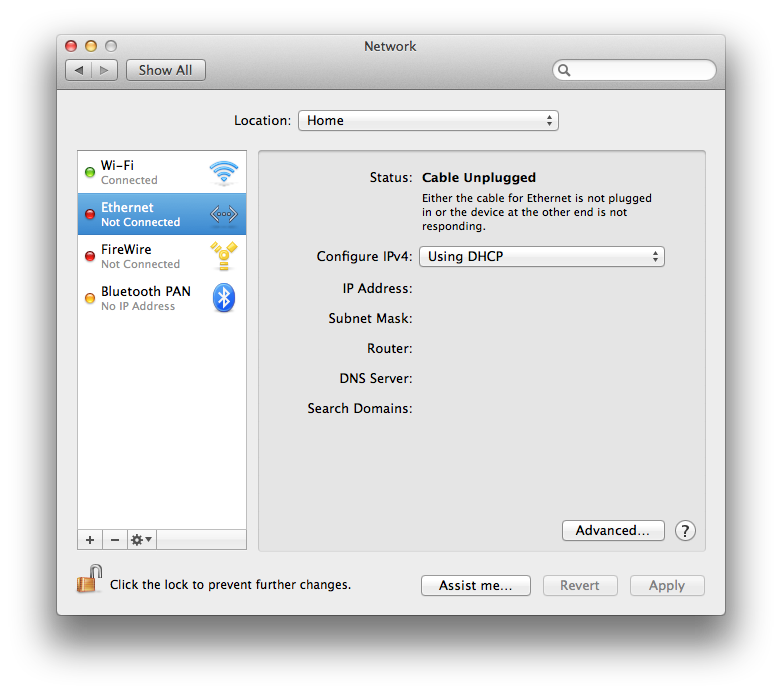
6. Choose the Hardware tab under which you will see the MAC address of your Ethernet card.
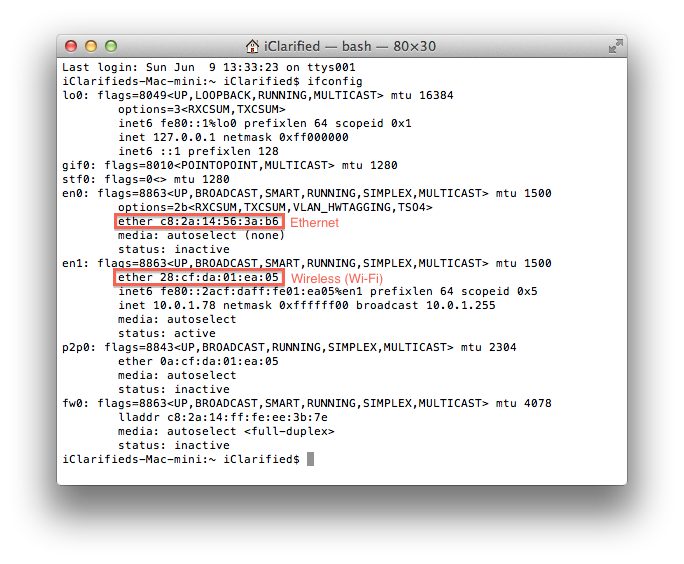
1. Launch Terminal from the Applications:Utilities folder.
2. Type ifconfig into the Terminal window and press the Enter/Return key.
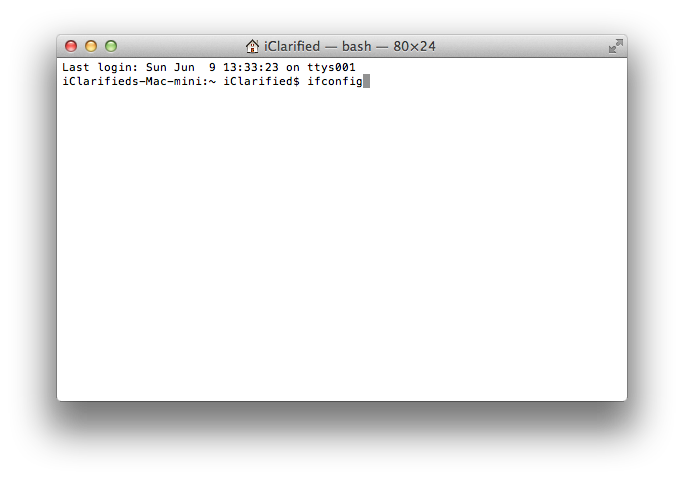
3. You will be shown data on all your interfaces.
On systems with both an ethernet and wireless connection, en0 will be your ethernet interface and en1 will be your wireless interface. A MAC address will be shown for both en0 and en1 and likely labelled as "ether".
On systems with just a wireless connection, en0 will be your wireless interface. The MAC address for en0 will likely be labelled as "ether".
Android Phone or Tablet
Finding the MAC Address on Your Android Tablet
To locate the MAC Address of your Android phone or Android tablet, follow these steps:
- On the Home screen, tap the
 Menu key and go to Settings.
 - Scroll down and tap About Tablet then tap Status and then scroll down to view WiFi Mac address
Finding the MAC Address on Your Android Phone
Depending on your device, attempt to follow one set of instructions listed below:
- On the Home screen, tap the Menu button and go to Settings.
- Tap About Phone.
- Tap Status.
- Scroll down to see your WiFi MAC address.
Or,
- On the Home screen, tap the Menu button and go to Settings.
- Tap About Phone.
- Tap Hardware information.
- Scroll down to see your WiFi MAC address.
Or,
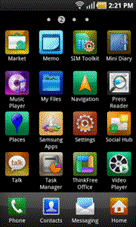
2. Now select Wireless and network.
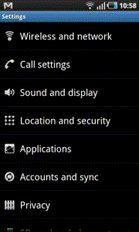
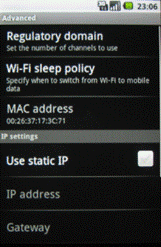
3. Select WiFi Settings. You will find the MAC address under the Advanced section.
iPad, iPhone or iPod Touch
To locate the MAC Address of your iPad, iPhone or iPod Touch, follow these steps:
1. Tap Settings.

2. Select General.

3. Then select About.

4. The MAC address is listed as WiFi Address.

BlackBerry
1. Select Options from the Home screen.
2. Select Status.
3. Your BlackBerry's MAC address is listed in the field marked WLAN MAC.
Source: WikiHow | Southwestern University School of Law | optimum | The University of Texas | iClarified2. Select Status.
3. Your BlackBerry's MAC address is listed in the field marked WLAN MAC.

Post a Comment
0 comments
Dear readers, after reading the Content please ask for advice and to provide constructive feedback Please Write Relevant Comment with Polite Language.Your comments inspired me to continue blogging. Your opinion much more valuable to me. Thank you.